We believe that students have the potential to achieve all of their aspirations when they are in an environment that does not marginalize.
To request support for any technology issue it is recommended that you email help@kingphilipregional.on.spiceworks.com or login to the technology web interface.
PLEASE NOTE THAT THE WEB INTERFACE IS ONLY ACCESSIBLE FROM WITHIN THE KING PHILIP DOMAIN.
When emailing techhelp please include a subject line and DO NOT use RE: or FW:
Include a full explanation in the body of your message along with your room number and school.
At the beginning of each school year, KP distributes Chromebooks to all incoming students. Parents must register for the device through FamilyID and complete a device acceptance form for each child. As part of the registration process, parents will be asked to choose whether to accept or decline the optional Device Protection Plan for that school year. Regardless of that choice, the form must be signed twice—once to accept or decline the Device Protection Plan and once to acknowledge and accept the device terms. If you choose to enroll in the protection plan, it must be renewed each school year through the same registration process.
Every KP student that is issued a device is expected to use it for their schoolwork. Students should bring the device home each day, ensure it is fully charged, and bring it back to school ready for use the following day.
Below are some valuable resources for getting started with your new ClearTouch board.
The first set of links are videos showing you different ways that you can use the board, I do recommend watching them in order.
Below that you will find a link to the ClearTouch downloads page. There are several useful tools on this page that you are free to download and try, however, the important one we need EVERYONE to download and install is the Collage app. I have included a direct link for that as well, please download and install this app as soon as possible.
To change your login password for either Windows or Google:
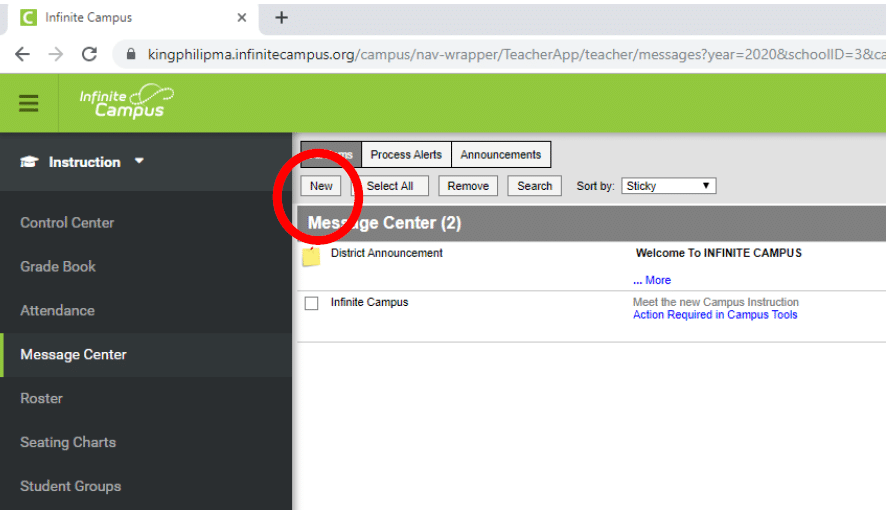
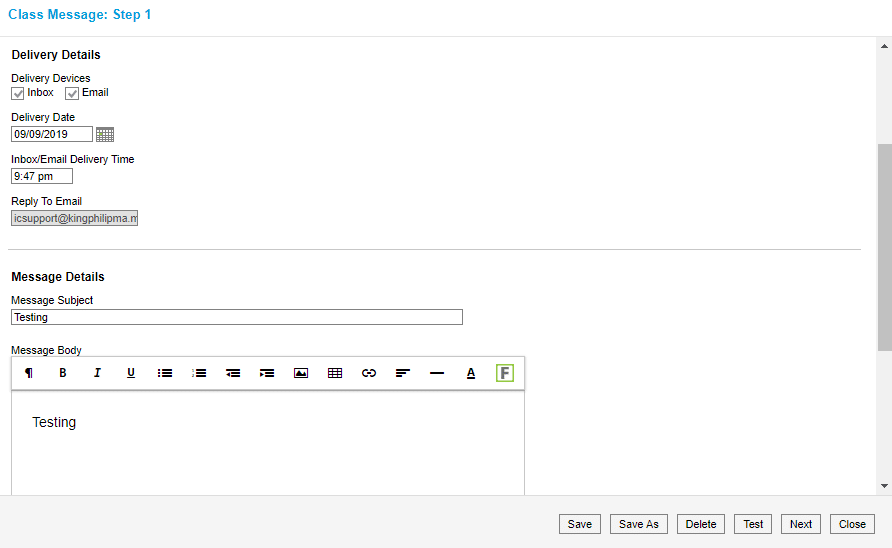
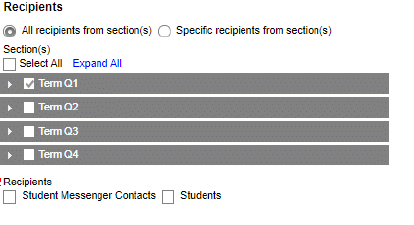
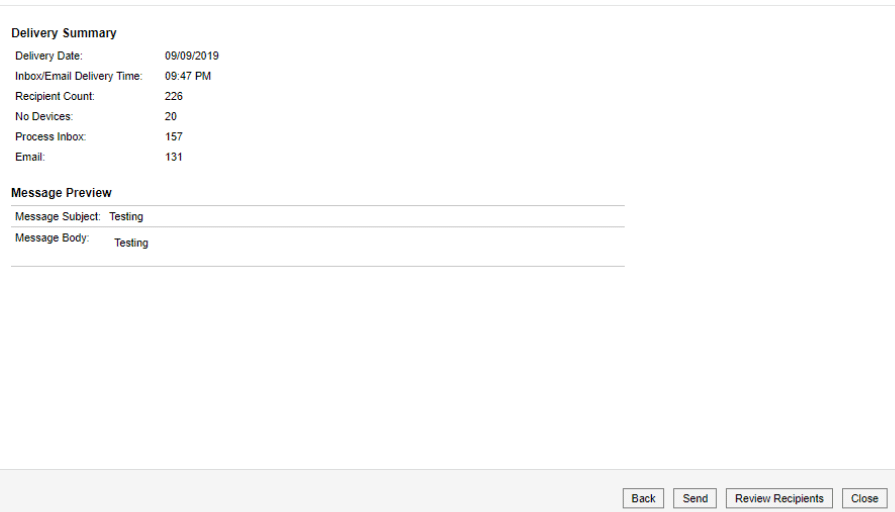
Directions for sending a class email


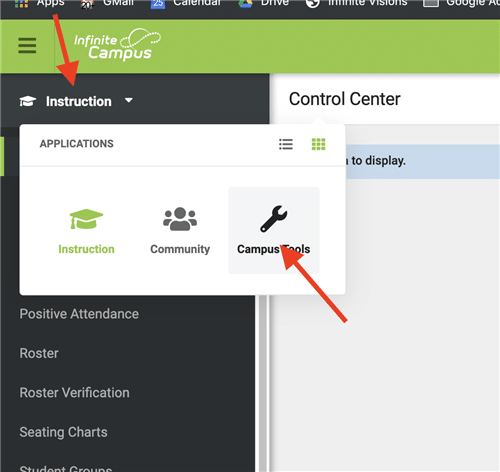
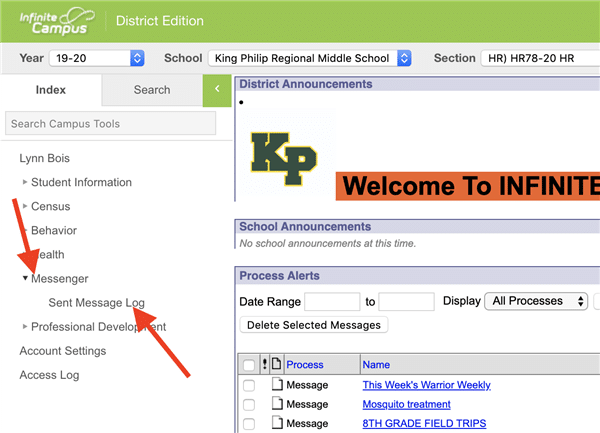
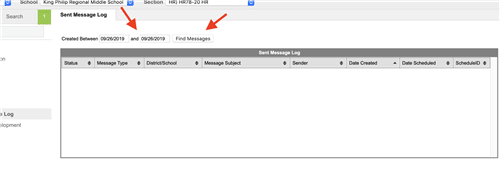
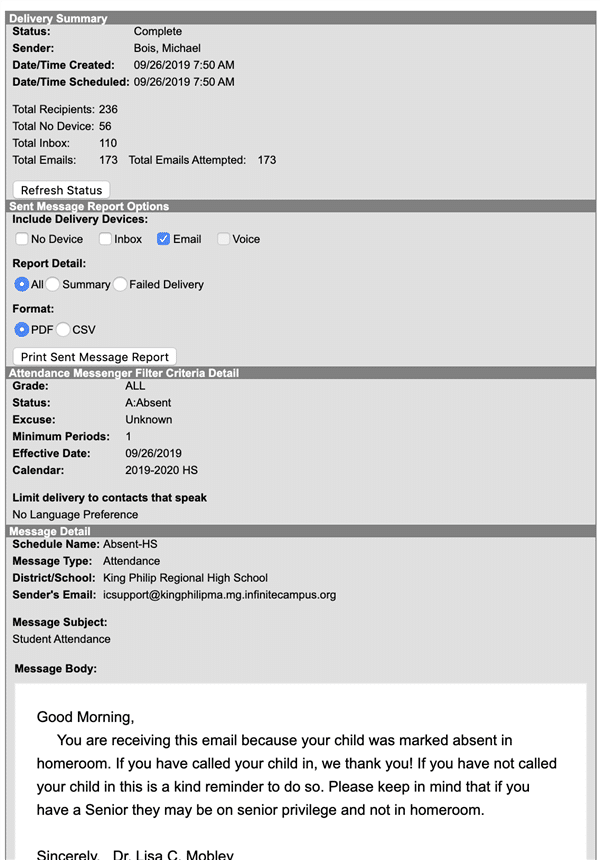
To access messages you have sent from IC:


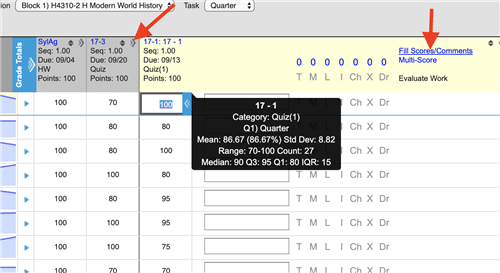
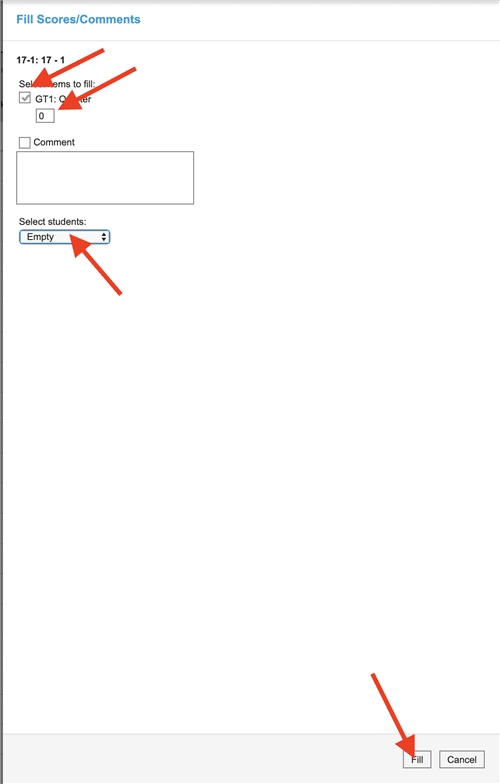
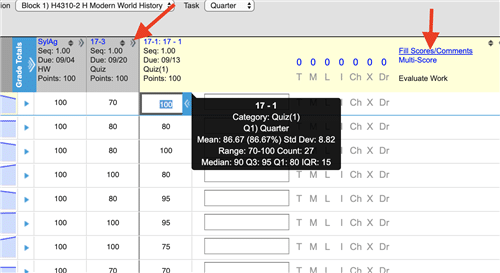
To fill a 0 for missing grades:
Expand the assignment and choose fill scores\comments

Next, click the check box, enter a 0 and change the dropdown to empty then hit fill at the bottom.

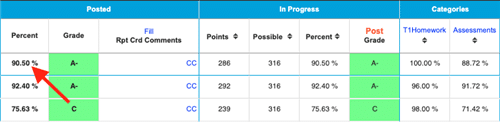
If you would like to manually enter a grade that is different from what the student has earned.
Click in the “Percent” box under Posted section and enter the new value

The letter grade will change automatically.
Please note, you must change the percent. Changing the letter grade will only change the letter shown in the portal and report card, and will not change the actual grade, which impacts the final grade.
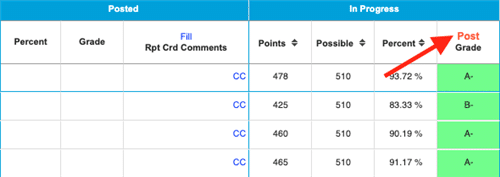
When the window opens, you will see “Post” under the “In Progress” tab, above “Grade”
If you do not see this section, you will need to expand the “Grade Tools” to see it.


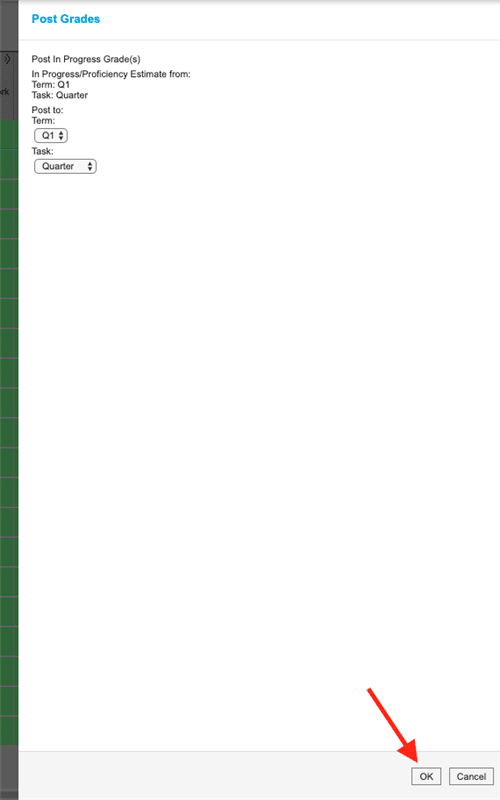
In the next box, click “OK” at the bottom

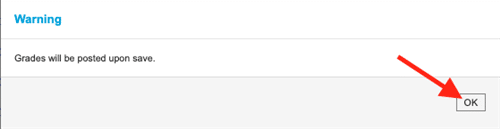
It will tell you grades will be posted when you hit save, click “OK”

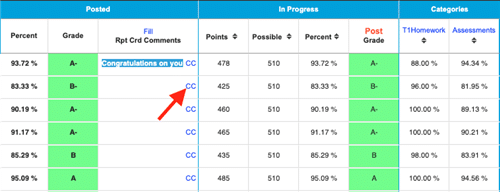
To fill a comment to the whole class, click “Fill” above “Rpt Crd Comments” (do this before going back and setting individual comments)
For individual comments, click the “CC” to enter a canned comment

Click the comment or comments then hit “Save” at the bottom.

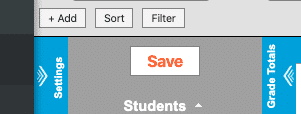
You MUST hit Save in the top left to finish submitting grades:

Now repeat for each class.
When the window opens, you will see “Post” under the “In Progress” tab, above “Grade”
If you do not see this section, you will need to expand the “Grade Tools” to see it.
In the next box, click “OK” at the bottom
It will tell you grades will be posted when you hit save, click “OK”
To fill a comment to the whole class, click “Fill” above “Rpt Crd Comments” (do this before going back and setting individual comments)
For individual comments, click the “CC” to enter a canned comment
Click the comment or comments then hit “Save” at the bottom.
You MUST hit Save in the top left to finish submitting grades:
Now repeat for each class.